CamMicGo
Test documentation
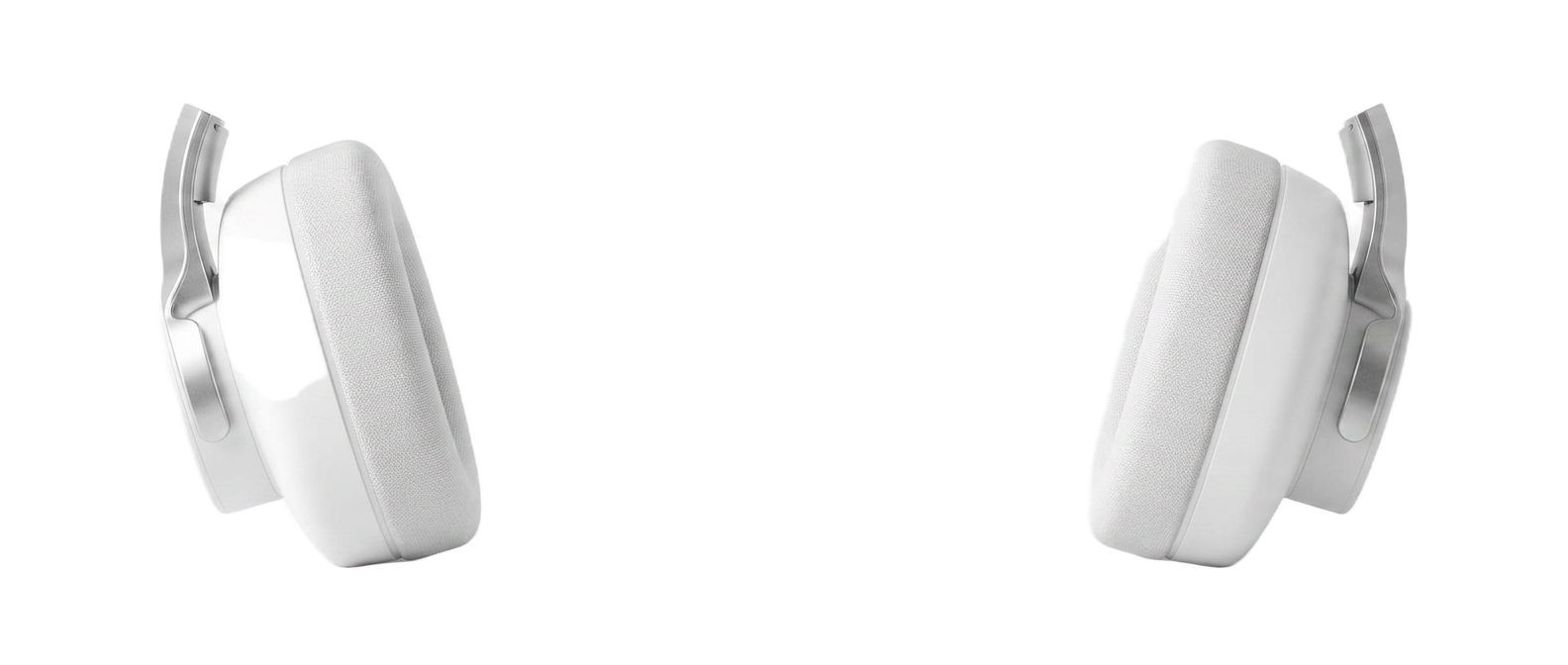
White over-ear headphone cups

No sound? Troubleshoot

No sound? Check these points

  1. 1Raise the device and browser media volume, then try the left and right buttons again.
  2. 2Confirm the headset is the active audio output in your operating system.
  3. 3For Bluetooth headsets, disconnect and reconnect Bluetooth and check that media audio is enabled.
  4. 4If only one side works, check balance settings and disable mono audio temporarily.
  5. 5Try another browser tab or a short music track: if that is also silent, the issue is outside this test.

Understand your results and improve your setup

A good test should not stop at a score. Use these practical checks to understand what the browser measured, what can affect the result, and what to change before your next call, stream or gaming session.

Left and right channels

Use the channel test to confirm that left audio is heard only on the left and right audio only on the right. Reversed channels can come from a cable, adapter, OS routing or device configuration.

Safe listening

Start at a low volume, especially for frequency sweeps and test tones. CamMicGo cannot know the acoustic output level of your headphones, so your system volume remains the safety control.

Why CamMicGo goes further

  • Private by design: tests and recordings are processed locally in your browser whenever possible.
  • Multilingual by design: the same diagnostics and explanations are available across CamMicGo languages.
  • Practical diagnostics: CamMicGo focuses on repeatable browser measurements and explains their limits instead of presenting them as laboratory certification.